Active Reading is constantly evolving to become even better for you!
We are always open to your ideas, suggestions, and feedback.
If you have improvement suggestions or encounter any issues — please write to us at support@bilingualreader.app.
Together, we make reading more convenient and engaging!
We are always open to your ideas, suggestions, and feedback.
If you have improvement suggestions or encounter any issues — please write to us at support@bilingualreader.app.
Together, we make reading more convenient and engaging!
Help for Active Reading App
Here you will find detailed instructions for every interface element. For clarity, screenshots are provided.
Main Page
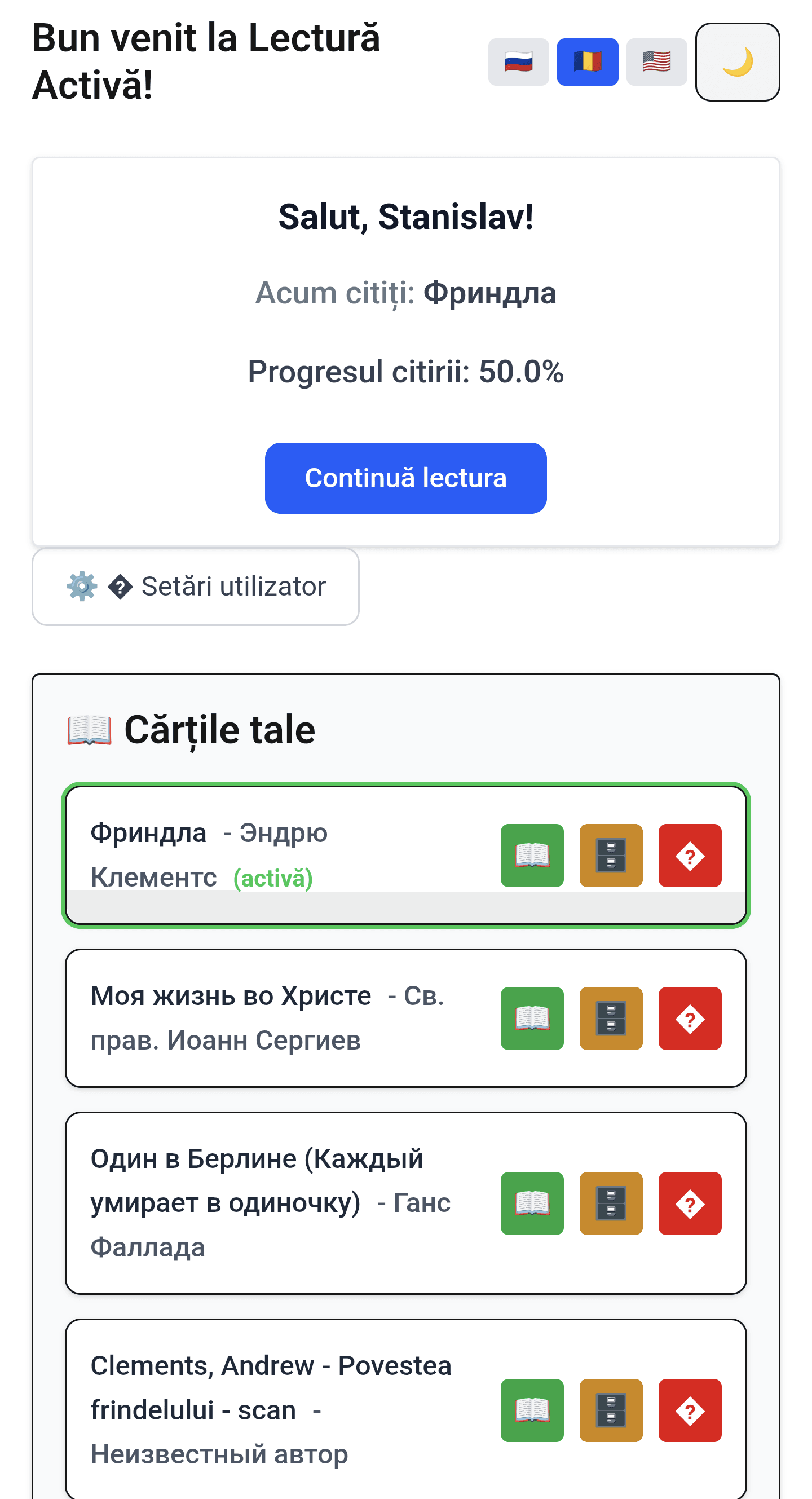
- Language selection buttons 🇷🇺 🇷🇴 🇺🇸 — switch the interface language (Russian, Romanian, English).
- Dark theme button ☀️/🌙 — toggles dark mode.
- Greeting block 👋 — displays your name, current book, and reading progress.
- "Continue Reading" button 📖 — opens the book at the last read page.
- Settings button ⚙️ — opens the Settings page (profile, email, reading preferences, etc.).
- Book list 📚 — your uploaded books. The active book is highlighted with a green border.
- Action buttons after the book title — open 📖, archive 🗄️, delete 🗑️ the book.
- Upload book button 📂 — upload a new book (EPUB/PDF/FB2/FB3).
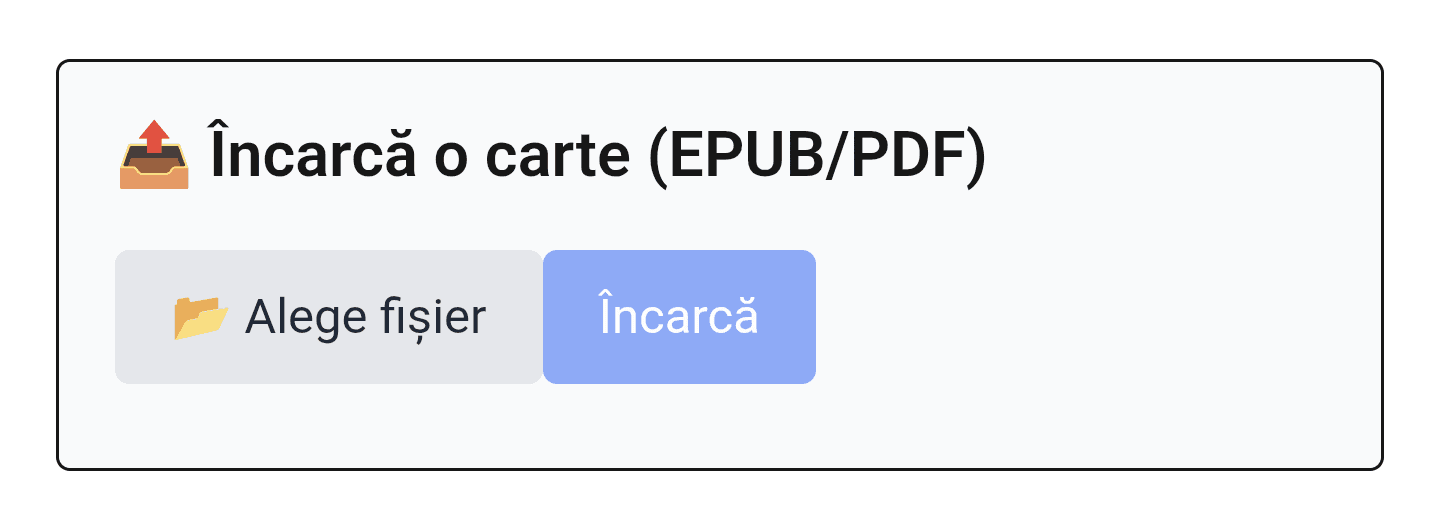
- "Choose File" button 📂 — select a book file from your device.
- "Upload" button ⬆️ — upload the selected book to your library.
Tools Modal Window
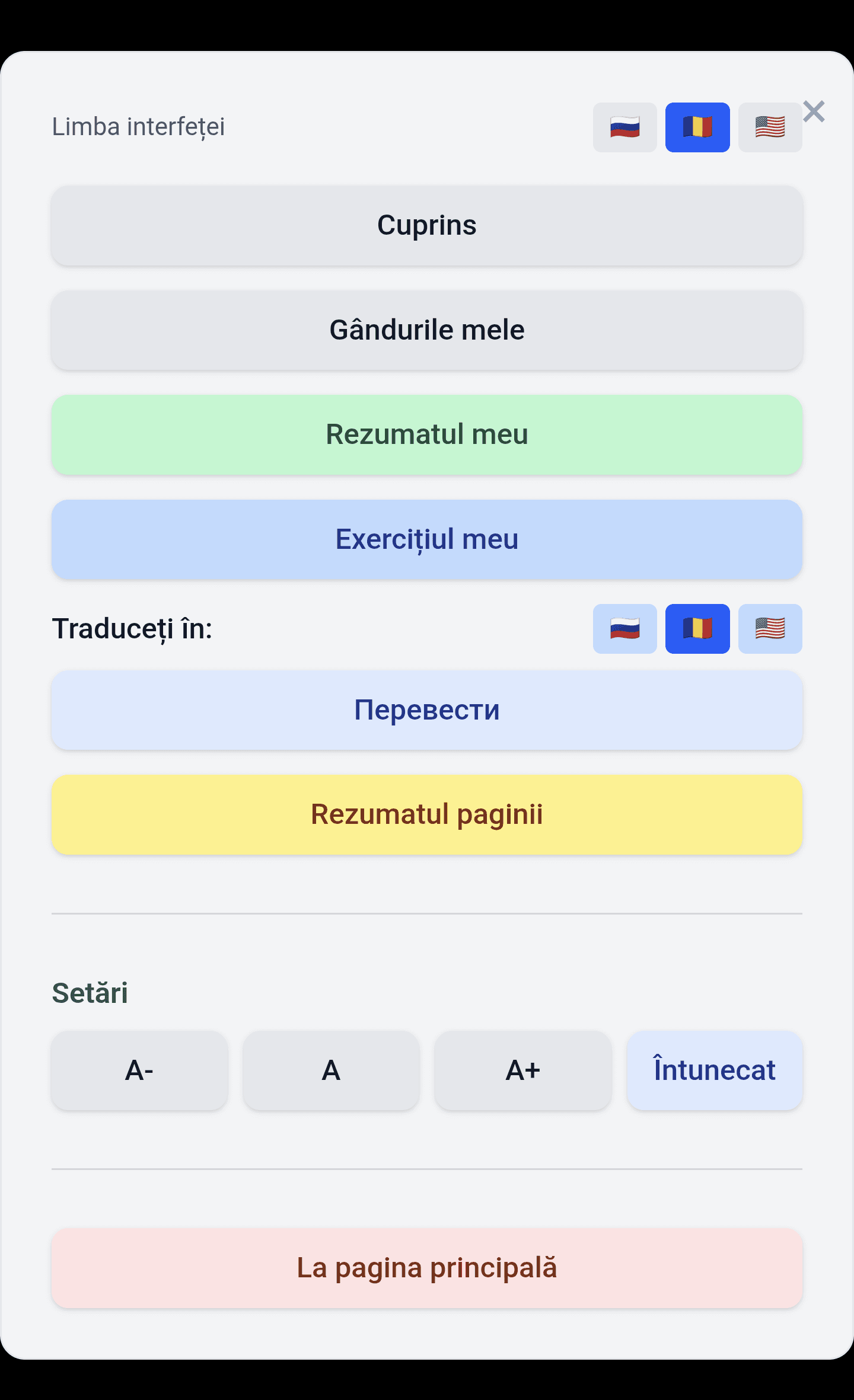
- Language flags 🇷🇺 🇷🇴 🇺🇸 — change the interface language.
- "Translate to:" block 🌐 — choose target language (🇷🇺/🇷🇴/🇺🇸).
- "Translate to …" button — translate the current page into the selected language.
- "Page summary" button 📘 — generate a short summary for the current page.
- "Tasks on the text" button 🎯 — generate tasks/exercises for the current page.
- "Table of Contents" button 📚 — show/hide TOC.
- "My thoughts" button 💭 — open the note input for the current page.
- "Readflow" button — open this book’s activity timeline.
- "Settings" button ⚙️ — go to the Settings page.
Settings page
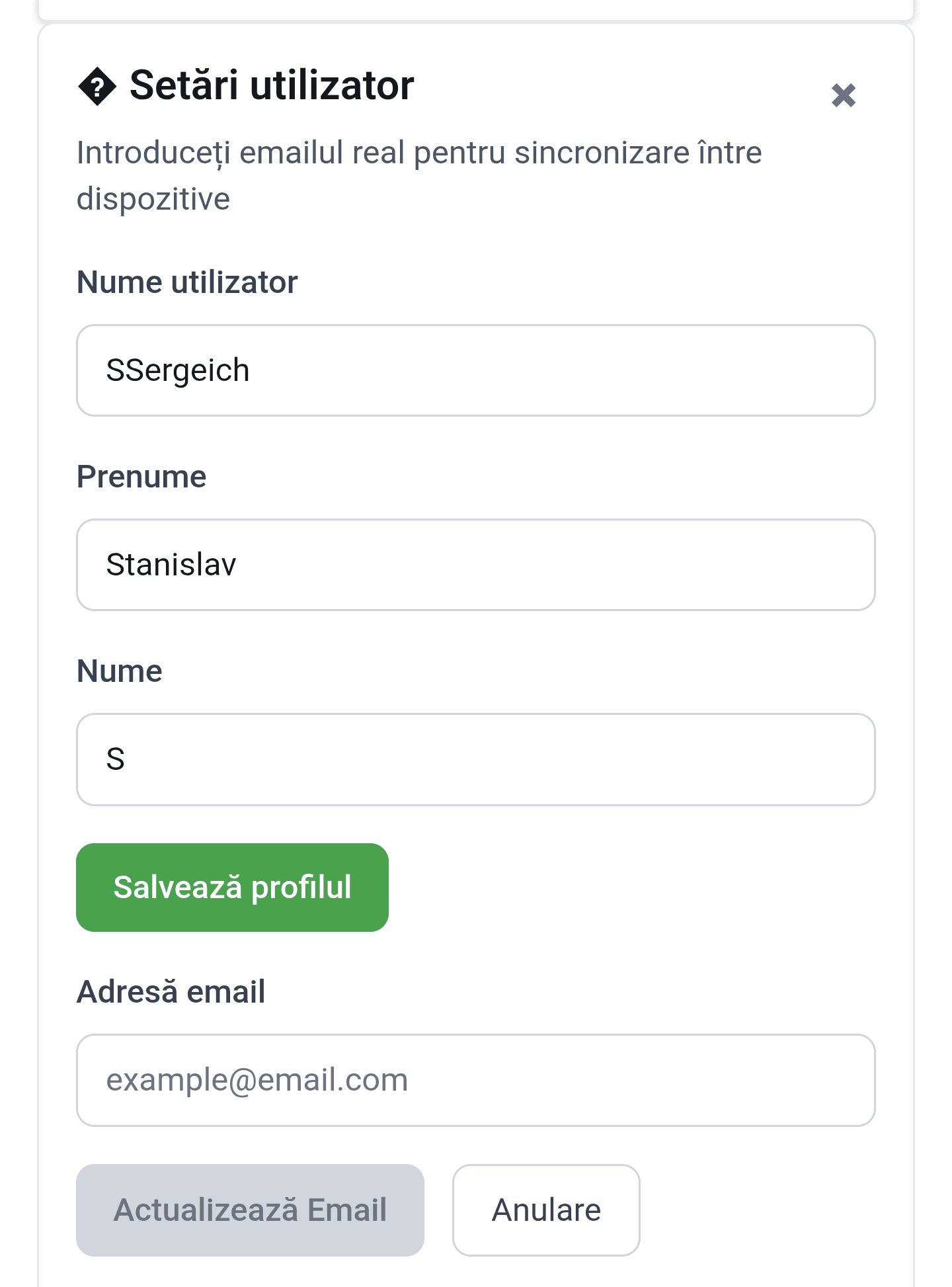
- Here you can update your profile (name/username) and email for sync across devices.
- Don't forget to save changes with the "Save Profile" button 💾.
Reading a Book
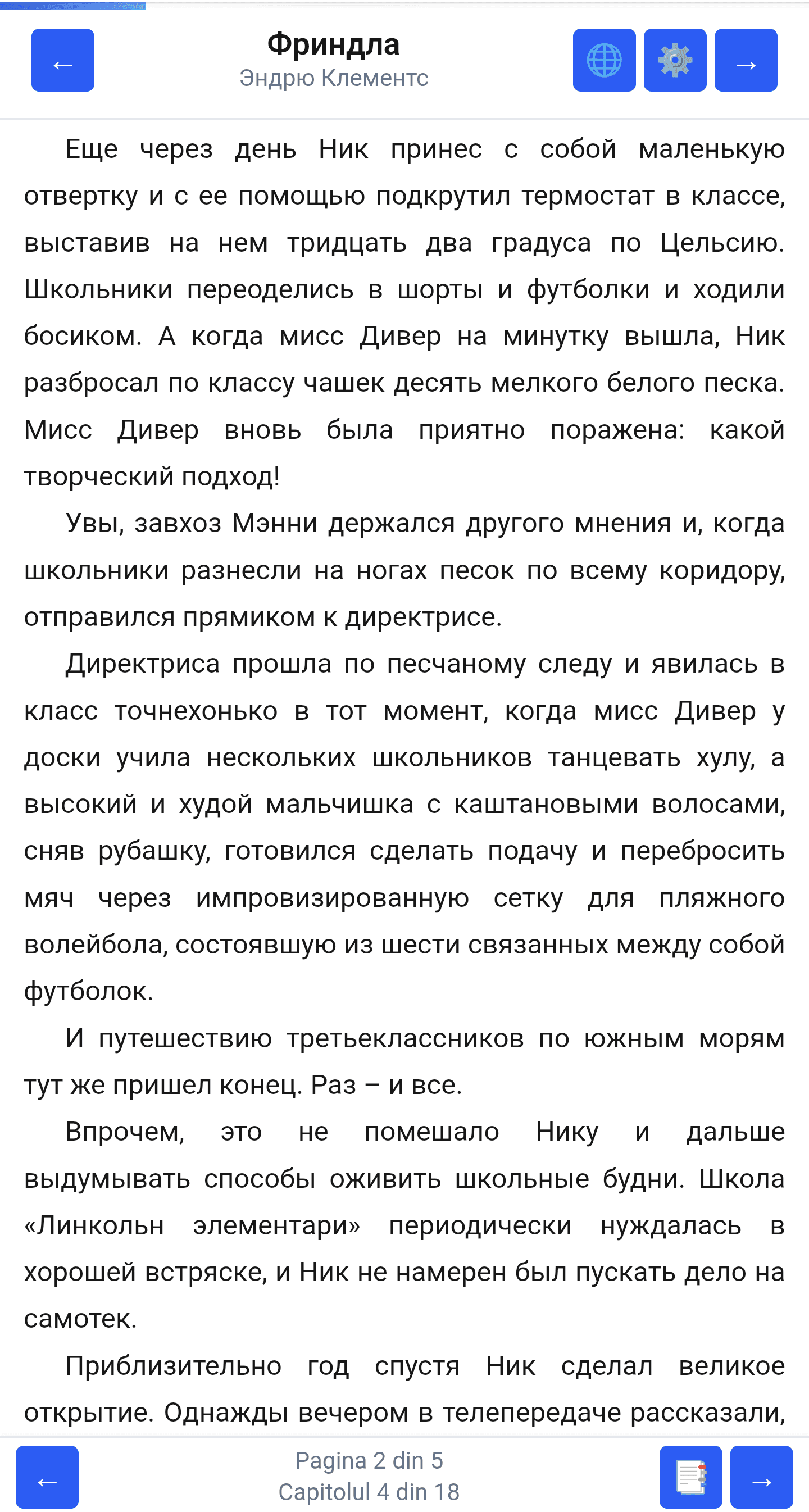
- Progress panel 📊 — shows the current page and chapter.
- Navigation ➡️⬅️ — tap zones on the left/right edges to move back/forward.
- Translate button 🌐 (EPUB/FB2/FB3 only) — translates the current page using the language selected in Tools.
- "Settings" button ⚙️ — opens the Tools modal.
- Bottom buttons (mobile) 📑 and 💬 — open the Interactive panel and discussion.
Interactive Panel
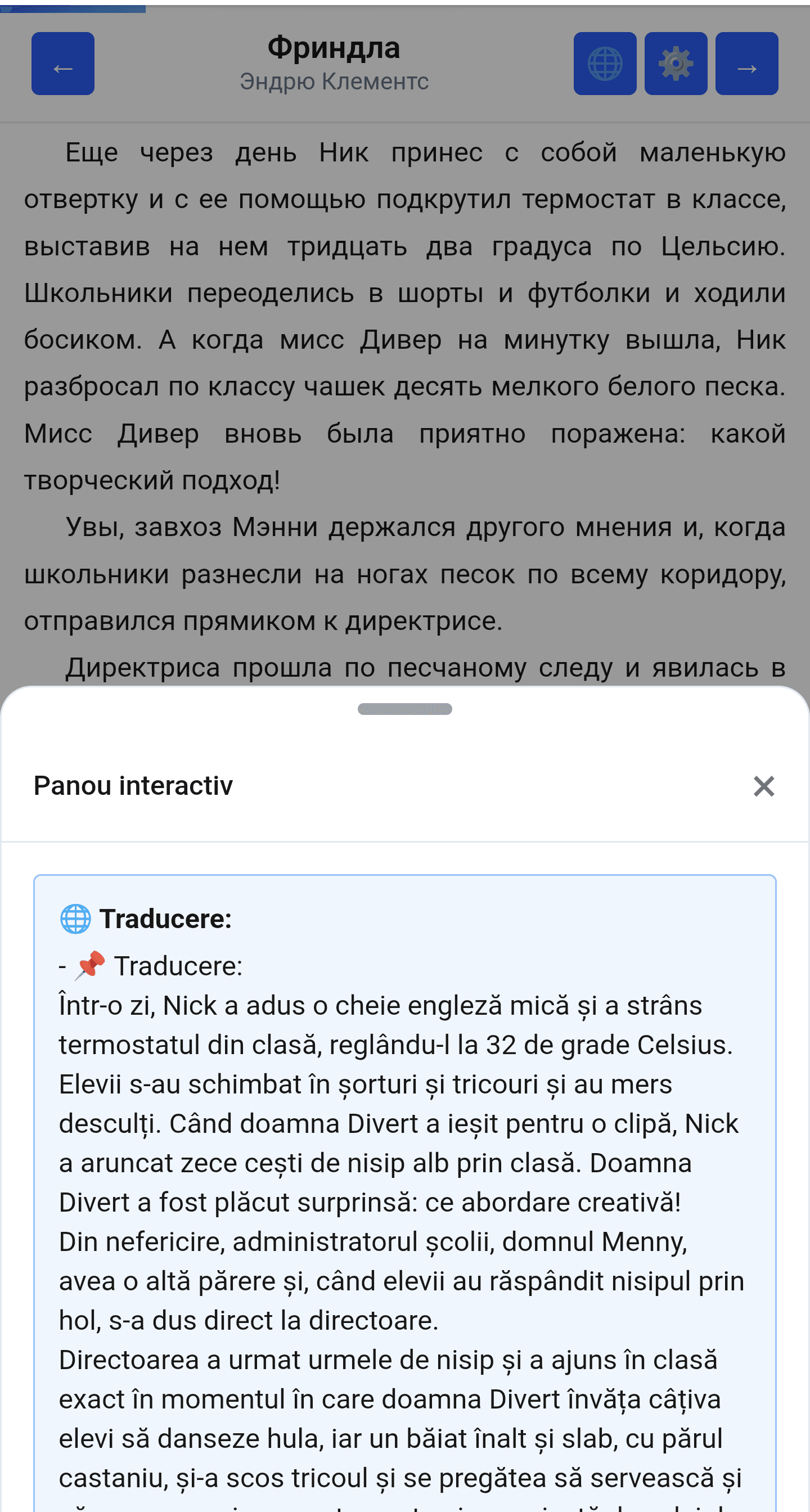
- Here you will find translation 🌐, summary 📘, tasks 🎯, and footnotes (when available) for the current page.
- The translation language is selected in the Tools modal.
Offline mode
The app can read books (EPUB/PDF/FB2/FB3) without internet if the book has been opened online before and is cached.
- How to prepare: open the book online at least once and let the page(s) load.
- If the connection drops: Continue Reading switches to the offline reader; if the book isn’t cached you’ll see a hint to open it online first.
- Indicator: the reader top bar shows an online/offline badge and sync status (when there’s something pending).
- Limitations: translation/summary/tasks, groups, and discussions require internet and become available again once you’re back online.
Groups & discussions
The Groups area is for shared reading: chapter discussions, polls, GPT prompts, and member management.
Join a group
- Open the Groups page (groups feed).
- Click Group directory, then Join with code and paste the invite code you got from the host/moderator.
- After joining, you’ll see the feed and chapter threads.
Create a group
- Open Group directory and click Create group.
- Set a name and pick a book (usually the one you’re reading).
- Copy the invite code and share it with your readers.
What’s inside
- Feed: recent messages/replies and polls with an unread badge.
- Chapter discussions: threads are scoped to a specific chapter.
- Polls: quick votes inside the discussion flow.
- GPT prompts: generate questions/summary/quiz for a selected chapter (when enabled).
- Members: roles (host/moderator/member) and actions like temporary mute.
Invite code (hosts/moderators)
- You can generate, copy, rotate (old one becomes invalid), or disable the invite code.
- If the code doesn’t work, ask the host to rotate/regenerate it.